
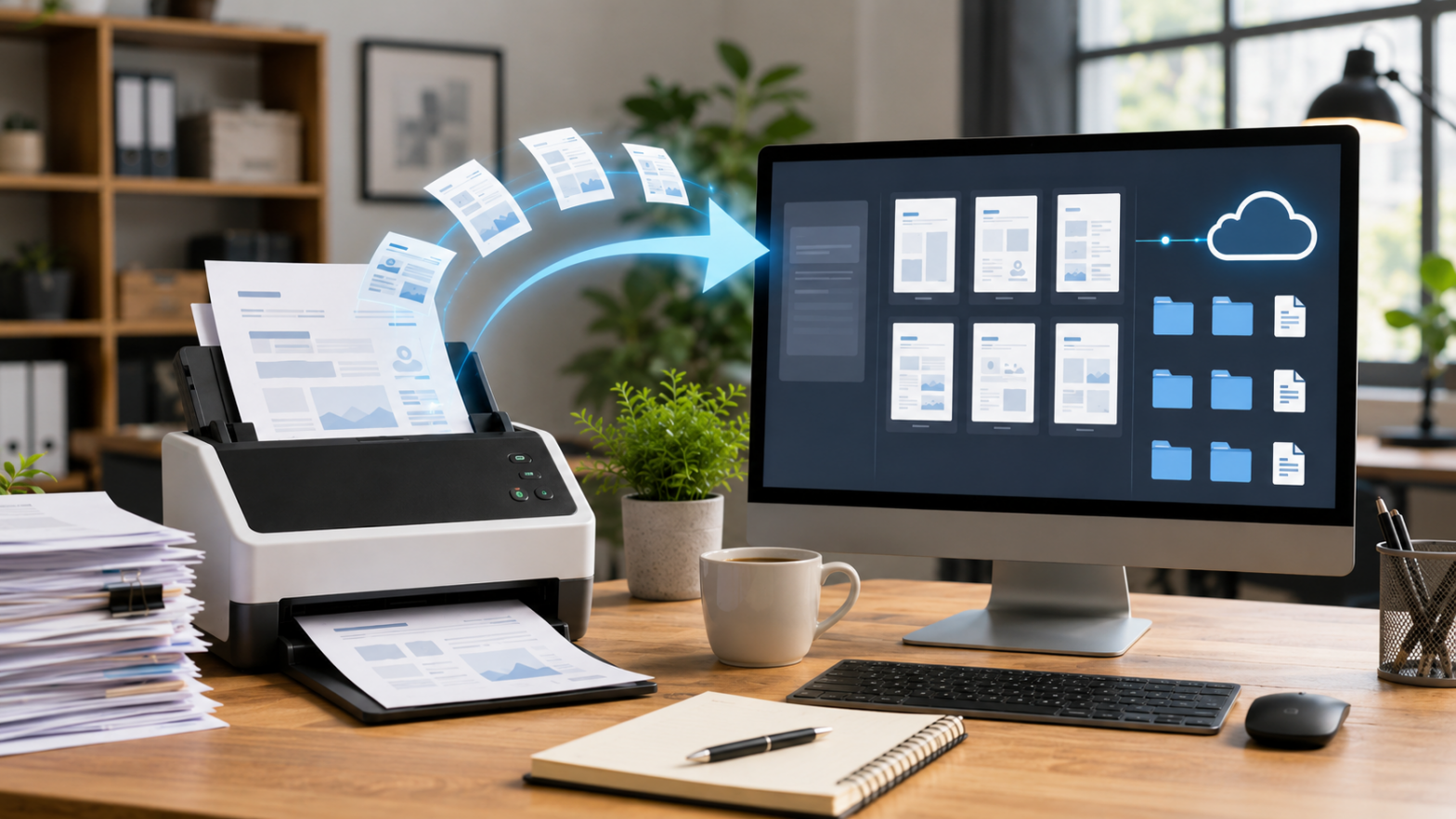
For small businesses, the paperless office is no longer just an aspiration — it is a practical necessity. Physical documents create storage costs, retrieval inefficiencies, sharing headaches, and real disaster risk when fire, flood, or simple misplacement strikes. Canon IJ Scan Utility, available as part of the Canon printer and scanner software ecosystem, provides an accessible starting point for small businesses looking to digitize their document workflows without investing in expensive enterprise document management systems.
This guide is written specifically for small business owners, office managers, and solo professionals who use Canon devices and want to build a reliable, efficient paperless workflow. We cover everything from initial setup through batch scanning techniques, file organization strategies, integration with common business tools, and backup practices.
Why Canon IJ Scan Utility Is a Good Fit for Small Businesses
Small businesses have different needs from enterprise organizations and individual home users. They need software that:
- Works reliably without constant IT maintenance
- Handles the realistic document volume of a small operation (dozens to hundreds of documents per month, not thousands)
- Integrates with everyday business tools like email, cloud storage, and accounting software
- Can be operated by staff members who are not highly technical
- Does not require expensive licensing
Canon IJ Scan Utility checks all of these boxes. It is free, included with Canon device drivers, relatively straightforward to learn, and capable enough for small business use. It supports Windows 7 through Windows 11, making it compatible with virtually any current small business computing environment.
The Utility is included in the MP Drivers package for most Canon multifunction printers and scanners. If it is not already on your systems, it can be downloaded through the Canon support website or from canonijscanutility.org. Note that it is compatible with specific Canon models — verify compatibility for your device before downloading, as some models use Canon IJ Scan Utility Lite, a scaled-down version.
The Small Business Case for Paperless Scanning
Before diving into setup, it is worth quantifying why digitization matters for a small business:
Search time: The average office worker spends 1.5–2 hours per day searching for information. A significant portion of this is hunting for physical documents. Digitized, searchable documents reduce retrieval time to seconds.
Space costs: Filing cabinets occupy floor space that costs money. For small businesses in leased premises, paper storage is a literal overhead cost.
Compliance and auditability: Many industries require document retention for 3, 7, or even indefinite periods. Digital archives are easier to maintain, back up, and produce for audit purposes than physical ones.
Disaster recovery: A single fire or flood can destroy years of business records. Cloud-backed digital archives are geographically distributed and survive local disasters.
Collaboration: Digital documents can be shared instantly with remote staff, accountants, clients, or partners. Physical documents cannot.
The investment in setting up a scanning workflow — which takes a few hours of configuration time — pays back continuously through time savings and risk reduction.
Setting Up Canon IJ Scan Utility for Business Use
Installation and Device Recognition
Install Canon IJ Scan Utility as part of the Canon MP Drivers package for your specific device model. During installation, ensure your Canon printer or scanner is connected (via USB or network) and powered on. The utility will automatically detect your device.
Once installed, launch Canon IJ Scan Utility from the Start Menu. The main window presents a set of scanning shortcuts: Photo, Document, Custom, Stitch, and ScanGear buttons. For business document scanning, the Document and Custom modes are most relevant.
Configuring Document Mode for Business Scanning
Click Settings (the gear icon or the Settings menu) to open the detailed configuration panel. Within the Document settings:
Resolution: Set to 300 DPI for standard business documents. This produces files that are clearly readable while remaining manageable in size. For documents with very small print (e.g., legal fine print), 400 DPI provides sharper results.
Color Mode: Set to Grayscale for text-only documents. This produces smaller files than color mode without any quality loss for black-and-white text. Set to Color for documents containing color elements — logos, charts, highlighted text.
Output Format: Set to PDF for most business documents. PDFs maintain formatting across all devices and operating systems, are universally acceptable in business contexts, and can be made searchable with appropriate settings.
Save Location: Create a designated incoming scan folder, such as C:\Business\ScannedDocuments\Inbox\. This becomes the landing zone for all new scans that you review and file later.
File Naming: Enable automatic date-based naming. Canon IJ Scan Utility can prefix files with the scan date automatically. Supplement this with descriptive names as you file documents.
Creating Custom Scan Profiles
The Custom scan button allows you to save multiple preset configurations. Create profiles for the different document types your business regularly processes:
- Invoices: PDF, 300 DPI, Grayscale, save to
Invoices/Inbox/ - Contracts: PDF, 300 DPI, Color (to preserve any color-coded elements), save to
Legal/Inbox/ - Business Cards: JPEG, 600 DPI, Color, save to
Contacts/ - Receipts: PDF, 200 DPI, Grayscale, save to
Expenses/
Having dedicated profiles means any staff member can scan different document types correctly without needing to change settings each time.
Batch Scanning for High-Volume Document Days
Small businesses periodically face high-volume scanning tasks — digitizing an archive of old records, processing a large batch of supplier invoices, or scanning all the paperwork from a recently completed project. Canon IJ Scan Utility handles batch scanning through its automatic document feeder (ADF) support.
Using the ADF for Batch Scanning
If your Canon device includes an ADF (automatic document feeder), you can load a stack of documents and have them scanned sequentially with a single click:
- Load your document stack in the ADF feeder, face-down with the first page on top (or as indicated by your specific model’s markings).
- In Canon IJ Scan Utility, select your document profile.
- Choose ADF as the document source in the Settings panel.
- Click Scan.
The utility will scan each page in turn, and depending on your settings, either save each as a separate PDF or compile the batch into a multi-page PDF. For invoice batches, separate files are usually preferable (one per invoice). For multi-page contracts or reports, the multi-page PDF option is more appropriate.
Naming and Organizing Batch Scans
After a batch scan, the files land in your inbox folder with auto-generated names. Schedule a brief review session — 10–15 minutes — after each batch scan to rename files meaningfully and move them to the correct folders.
A consistent naming convention for business documents: YYYY-MM-DD_Vendor_Type_Reference.pdf
For example:
2026-06-15_AcmeCorp_Invoice_INV2026-847.pdf2026-06-18_LandlordName_Lease_Amendment3.pdf2026-06-20_Subscription_Receipt_AdobeJune.pdf
The date-first format ensures files sort chronologically in any file manager.
Building Your Business Document Folder Structure
A paperless office only functions well if documents can be found again. Before scanning a large volume of documents, establish a clear folder structure. Here is a practical framework for a small business:
Business Documents/
├── Finance/
│   ├── Invoices/
│   │   ├── Sent/
│   │   └── Received/
│   ├── Bank Statements/
│   ├── Receipts/
│   ├── Tax/
│   │   ├── 2024/
│   │   ├── 2025/
│   │   └── 2026/
│   └── Payroll/
├── Legal/
│   ├── Contracts/
│   ├── Leases/
│   └── Licenses/
├── HR/
│   ├── Employment Contracts/
│   └── Training Records/
├── Operations/
│   ├── Supplier Documents/
│   └── Certifications/
└── Inbox/          ← All new scans land here, reviewed regularly
Store this folder structure in a cloud storage service (Google Drive, Dropbox, OneDrive, SharePoint) rather than only on a local drive. Cloud storage provides:
- Access from any device
- Automatic backup
- Sharing capability with staff, accountants, or advisors
- Version history (in case a file is accidentally deleted or overwritten)
Making Scanned Documents Searchable
Plain image scans — where the document is saved as a picture of text rather than actual text — are not searchable. You cannot use Ctrl+F to search within them, and operating system search will not find them by content. For business documents, searchable PDFs are significantly more valuable.
Canon IJ Scan Utility offers PDF output options. Depending on your version and setup, you may have a Create searchable PDF option. If your version does not include built-in OCR, several workflows can add this:
- Adobe Acrobat: If your business uses Adobe Acrobat (full version, not just Reader), open the scanned PDF and use Enhance Scans > Recognize Text to add OCR.
- Microsoft OneNote: Pasting an image into OneNote automatically applies OCR, and the extracted text becomes searchable.
- Online OCR tools: For occasional use, free web-based OCR tools can process individual documents.
- Dedicated OCR software: Applications like ABBYY FineReader or Readiris provide high-quality batch OCR for businesses with significant scanning volumes.
For businesses where document search is critical — law firms, accounting practices, medical offices, insurance brokers — investing in dedicated OCR software is worthwhile. For most small businesses, the built-in options are sufficient.
Integrating Scanned Documents With Business Applications
Accounting Software
Most small business accounting platforms (QuickBooks, Xero, FreshBooks, Wave) accept PDF attachments for expenses, invoices, and receipts. After scanning a receipt or supplier invoice, attach the PDF directly to the corresponding transaction in your accounting software. This creates a complete audit trail and makes VAT/expense reporting straightforward.
Email and Communication
Scanned documents frequently need to be shared. From your document folder, attach the PDF to an email directly. For larger files (multi-page contracts, detailed reports), use a cloud share link rather than a direct attachment to avoid inbox size limits.
Contract Management
For businesses that manage multiple client or supplier contracts, a folder-based system eventually becomes unwieldy. Consider complementing your scanning workflow with a simple contract management tool (PandaDoc, DocuWare, or even a shared spreadsheet tracking contract dates and key terms) once your document volume justifies it.
Security Considerations for Scanned Business Documents
Scanned business documents often contain sensitive information: financial data, personal employee information, client details, proprietary business terms. Protect this information:
Access control: Ensure your cloud storage folders are shared only with people who need access. Most cloud platforms support granular folder-level permissions.
Password-protect sensitive PDFs: Adobe Acrobat and several free tools allow you to password-protect PDF files that contain highly sensitive information.
Secure disposal: After scanning physical documents containing sensitive information, shred rather than simply bin them.
Data retention policy: Decide how long to keep scanned documents and delete old ones according to your business’s retention requirements. Cloud storage costs money, and unnecessary documents accumulating indefinitely is both a cost and a privacy risk.
Building the Habit: Making Paperless Work
The biggest challenge in building a paperless office is not technical — it is behavioral. The system only works if documents are actually scanned promptly rather than stacked on a desk waiting. A few habits that help:
Scan on arrival: Process incoming mail and documents the day they arrive. This prevents backlogs and ensures nothing is lost.
Designate a scanner as the team’s hub: In a shared office, a centrally located Canon multifunction printer with IJ Scan Utility configured means anyone can quickly digitize documents without visiting a specific desk.
Weekly inbox review: Block 15 minutes weekly to review the scan inbox folder, rename files, and file them appropriately.
Train your team: Ensure all staff who handle documents know how to use the scanner and what the filing conventions are. Consistency is what makes the system work.
Canon IJ Scan Utility is not the most feature-rich scanning application available — it was not designed to compete with enterprise document management platforms. What it is is a reliable, accessible, free tool that gives small businesses everything they need to start and maintain a paperless document workflow. Paired with cloud storage, a clear folder structure, and consistent naming conventions, it creates a document management system that is searchable, backed up, shareable, and genuinely useful.
Small businesses that commit to a paperless workflow spend less time looking for documents, less money on physical storage, and less energy worrying about document loss. Canon IJ Scan Utility is a practical first step in that direction.
For downloads, tutorials, and more resources, visit canonijscanutility.org.